Connect and Use 3270Web
This page explains connection setup and the full Settings modal from a user perspective.
Connect to a Host
You can connect to:
hostname:port(example:mainframe.example.com:23)IPv4:port(example:10.0.0.5:23)IPv6:port(example:[::1]:23)sampleapp:<id>for bundled sample targets
If autoconnect is enabled, 3270Web will connect automatically on startup.
Open Settings
- Click the Settings icon in the toolbar.
- Use tabs to switch sections.
- Edit values.
- Click Save settings.
- If prompted, restart 3270Web to apply startup-level changes.
You can also use:
- Refresh to reload current values
- Reset to defaults inside each settings section
- Maximize for easier editing of long values
Toolbar Callouts
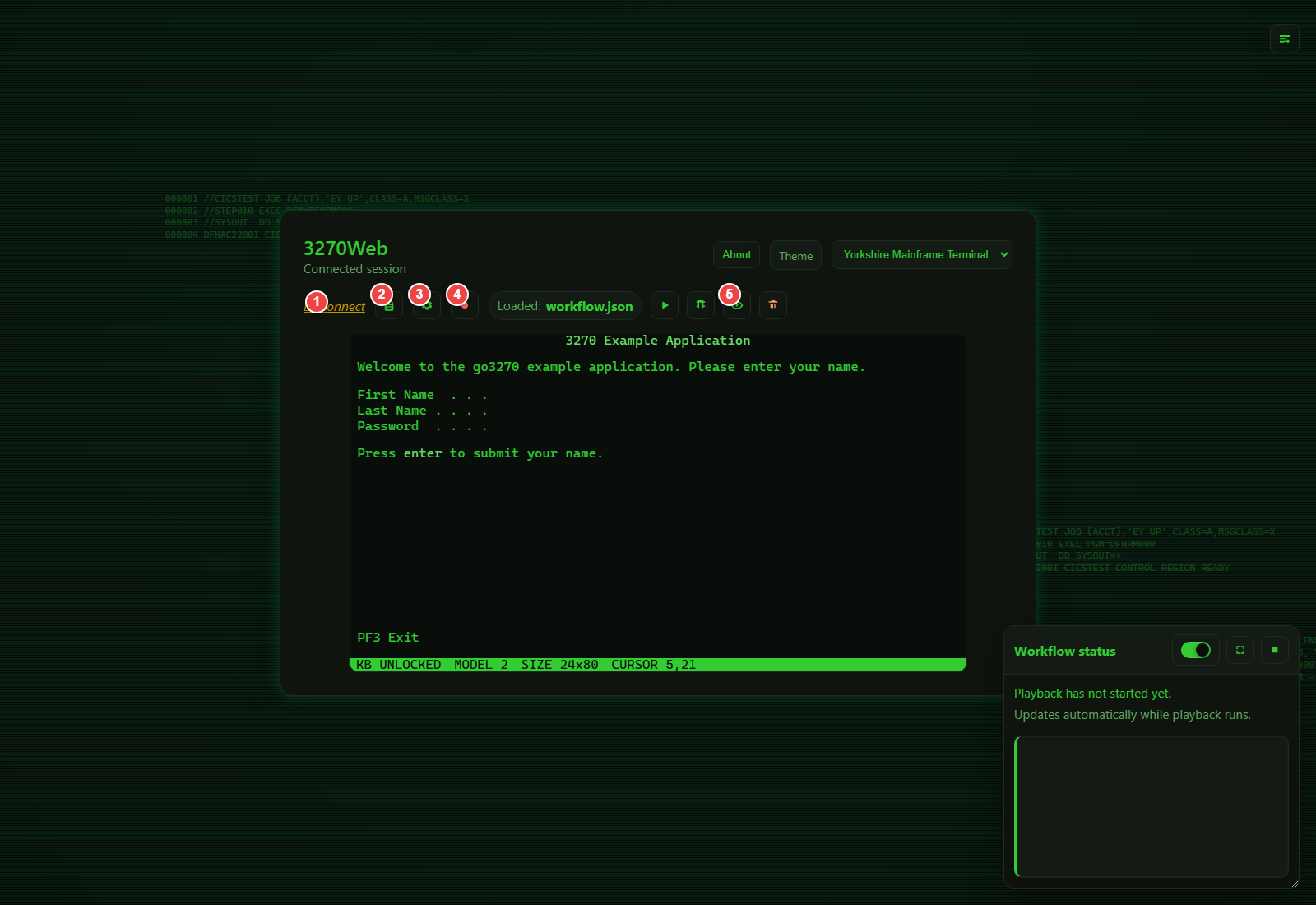
- Disconnect
- Logs
- Settings
- Start recording
- View recording (when a recording is loaded)
Settings Modal Callouts
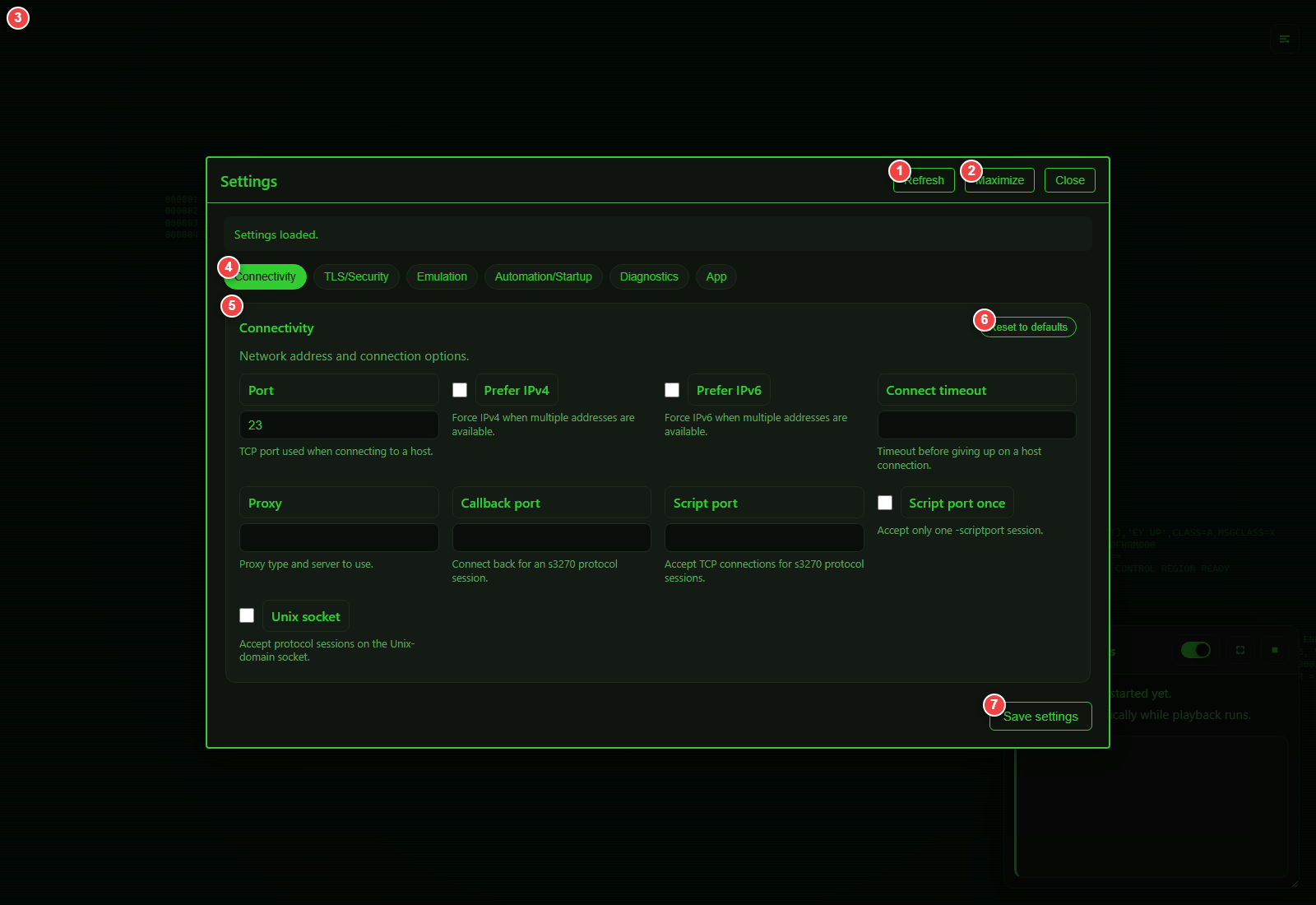
- Refresh values
- Maximize/restore modal
- Close settings
- Section tabs
- Active section content
- Reset section to defaults
- Save settings
Settings Sections (Full)
Connectivity
Controls how 3270Web reaches the host.
Includes:
- Port, connect timeout
- IPv4/IPv6 preference
- Proxy settings
- callback/script port and socket options
Use this section when you need alternate network routing or script protocol listeners.
TLS/Security
Controls TLS certificate and protocol behavior.
Includes:
- Certificate verification toggle
- Min/max TLS protocol
- Client certificate and key files
- CA file/directory/chain
- Accepted hostname and client certificate name
Use this when connecting to secured hosts with custom certificate requirements.
Emulation
Controls terminal identity and data representation.
Includes:
- Terminal model (
3278/3279variants) - Host code page
- Terminal/device/user identity options
- NVT mode and oversize behavior
This section directly affects screen size, field positions, and recording reliability.
Automation/Startup
Controls startup and command automation behavior.
Includes:
- Exec command override
- Login macro
- HTTPD binding
- Minimum required s3270 version
Use this for scripted startup flows and custom launch behavior.
Diagnostics
Controls trace and diagnostic output.
Includes:
- Trace enable/disable
- Trace file and max size
- Help/version/unit-test environment flags
Use this section when troubleshooting host interaction issues.
App
Controls application-level UI features.
Includes:
Allow log accessUse keypad(show virtual keypad by default)
Use this section to control log visibility and default keyboard UI behavior.
Chaos
Controls chaos exploration defaults.
Includes:
CHAOS_MAX_STEPSCHAOS_TIME_BUDGET_SECCHAOS_STEP_DELAY_SECCHAOS_SEEDCHAOS_MAX_FIELD_LENGTHCHAOS_LEARNED_INPUT_REUSE_BIASCHAOS_LEARNED_KEY_REUSE_BIASCHAOS_EXPORT_SUCCESS_BALANCECHAOS_OUTPUT_FILECHAOS_EXCLUDE_NO_PROGRESS_EVENTS
Use this section to tune how aggressively chaos mode explores screens and where optional output should be written.
Log Access
If log access is enabled in settings, you can open the Logs modal from the toolbar and:
- Turn verbose logging on/off
- Refresh logs
- Copy/download logs
- Clear logs
Best Practices
- Keep one known-good model/code page profile per host environment.
- Apply TLS changes carefully and verify certificate paths.
- Prefer debug playback for new recordings before running full play mode.