Keyboard and Controls
This page explains toolbar controls, keyboard mappings, and the virtual keypad.
Toolbar Controls
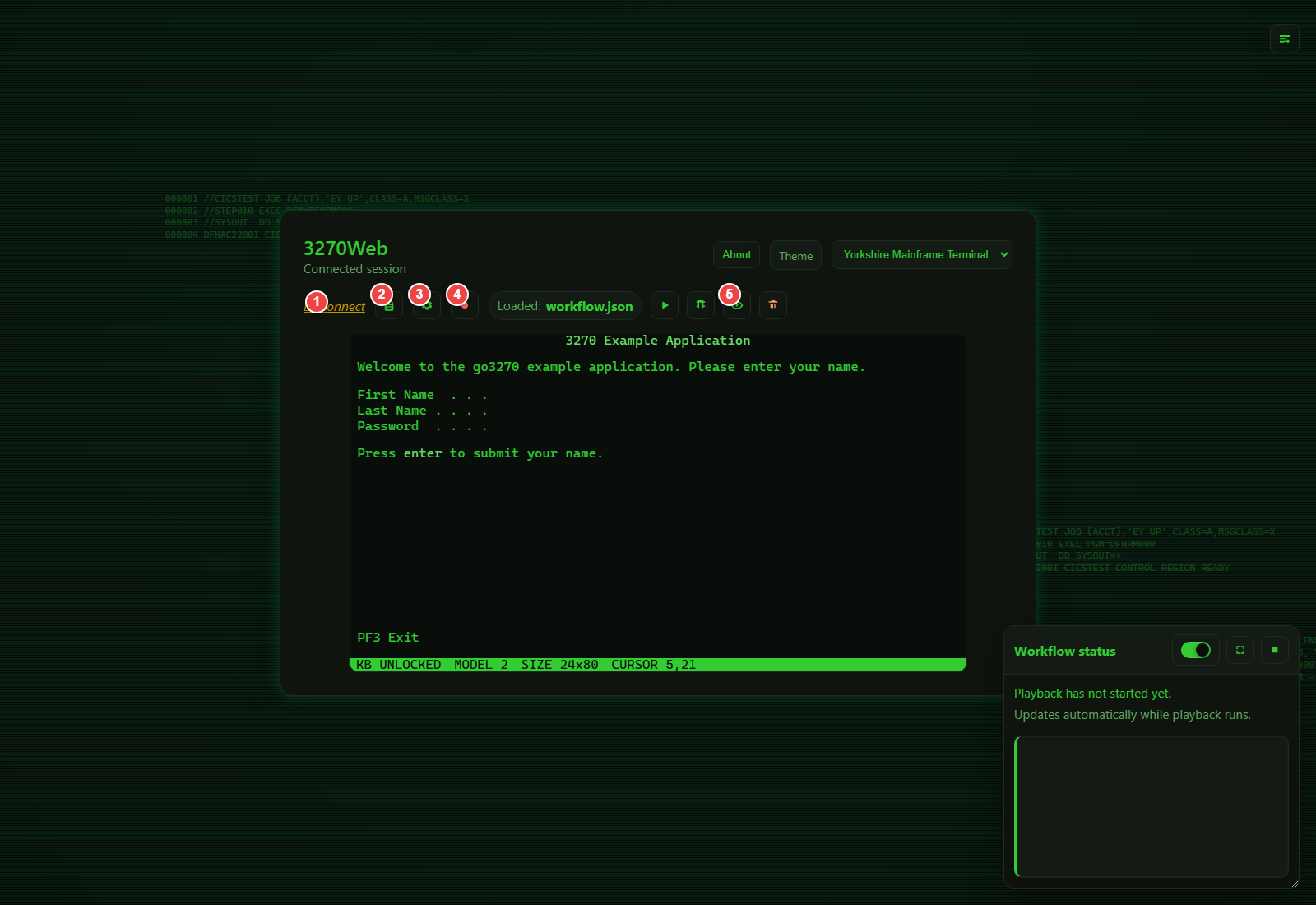
Main toolbar actions include:
- Disconnect session
- View logs
- Open settings
- Start/stop recording
- Load recording
- Play/debug/view/remove recording
- Playback pause/resume/stop controls (when active)
Virtual Keyboard (Keypad)
Use the keyboard icon to show or hide the virtual keypad.
Keypad features:
- Compact and full modes
- PF keys (
PF1toPF24) - PA keys (
PA1toPA3) - Common editing/navigation keys
- Dedicated Hide button
The keypad visibility preference can be saved in Settings (Use keypad).
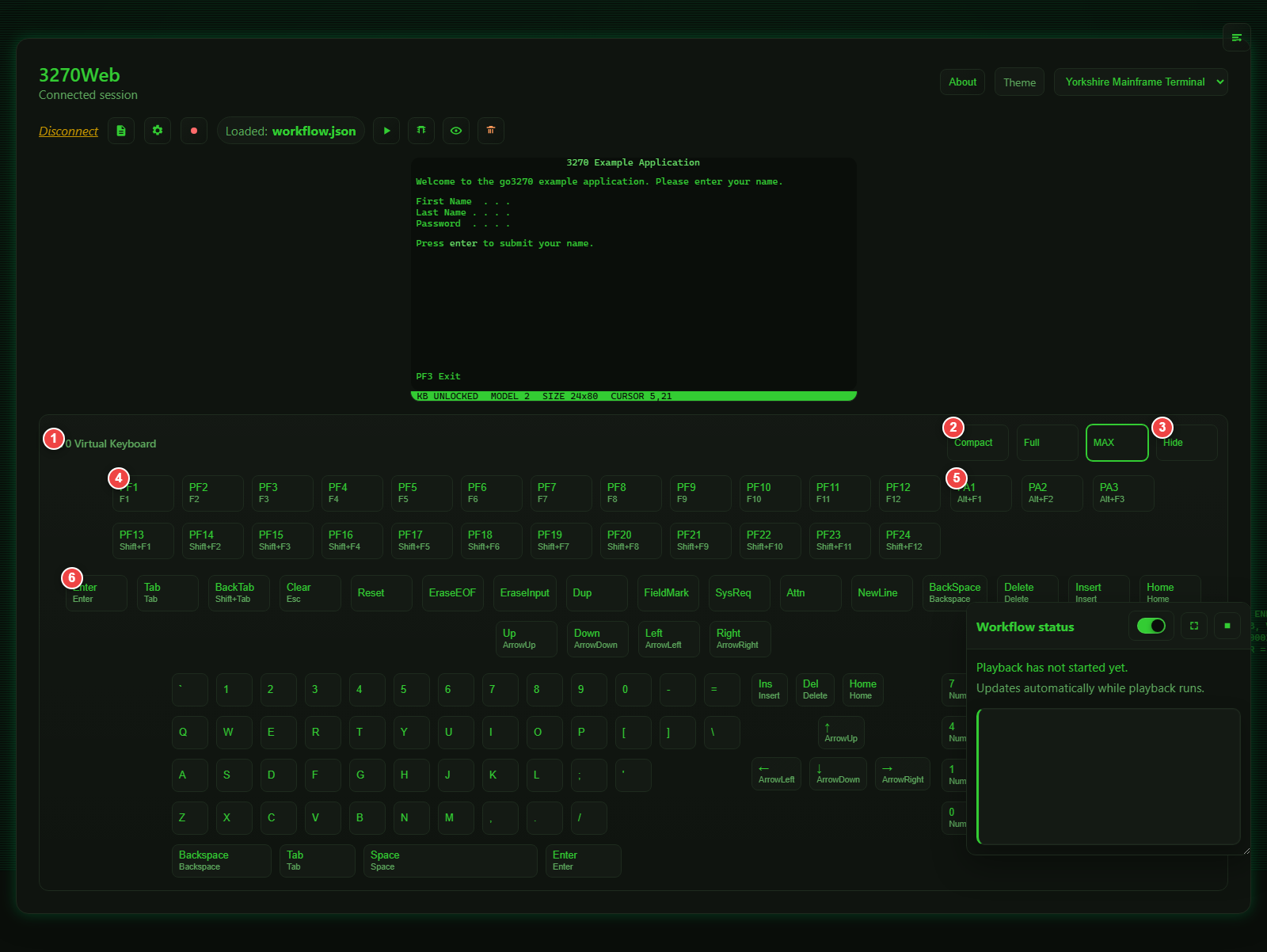
- Keypad title area
- Compact/full mode toggle
- Hide keypad
- PF key groups
- PA key group
- Common 3270 action keys
Physical Keyboard Mappings
Common mappings used by 3270Web:
Enter-> EnterTab-> TabShift+Tab-> BackTabEsc-> ClearArrow keys-> Cursor movementHome-> HomeBackspace-> BackSpaceDelete-> DeleteInsert-> InsertF1..F12->PF1..PF12Shift+F1..Shift+F12->PF13..PF24Alt+F1->PA1Alt+F2->PA2Alt+F3->PA3
Additional 3270 actions available in keypad/full mappings include Reset, EraseEOF, EraseInput, Dup, FieldMark, SysReq, Attn, and NewLine.
Focus and Input Behavior
When you press mapped keys, 3270Web sends the action to the host and refreshes the terminal content. Cursor-aware behavior is preserved for field input where possible.
Tips for Reliable Use
- Keep browser focus on the terminal area while typing.
- Use the keypad for less common 3270 keys if your keyboard layout does not expose them.
- If commands appear out of sync, pause briefly and retry in debug playback mode.