Recordings and Playback
3270Web can capture terminal actions as JSON recordings and run them later.
Recording and Playback Callouts
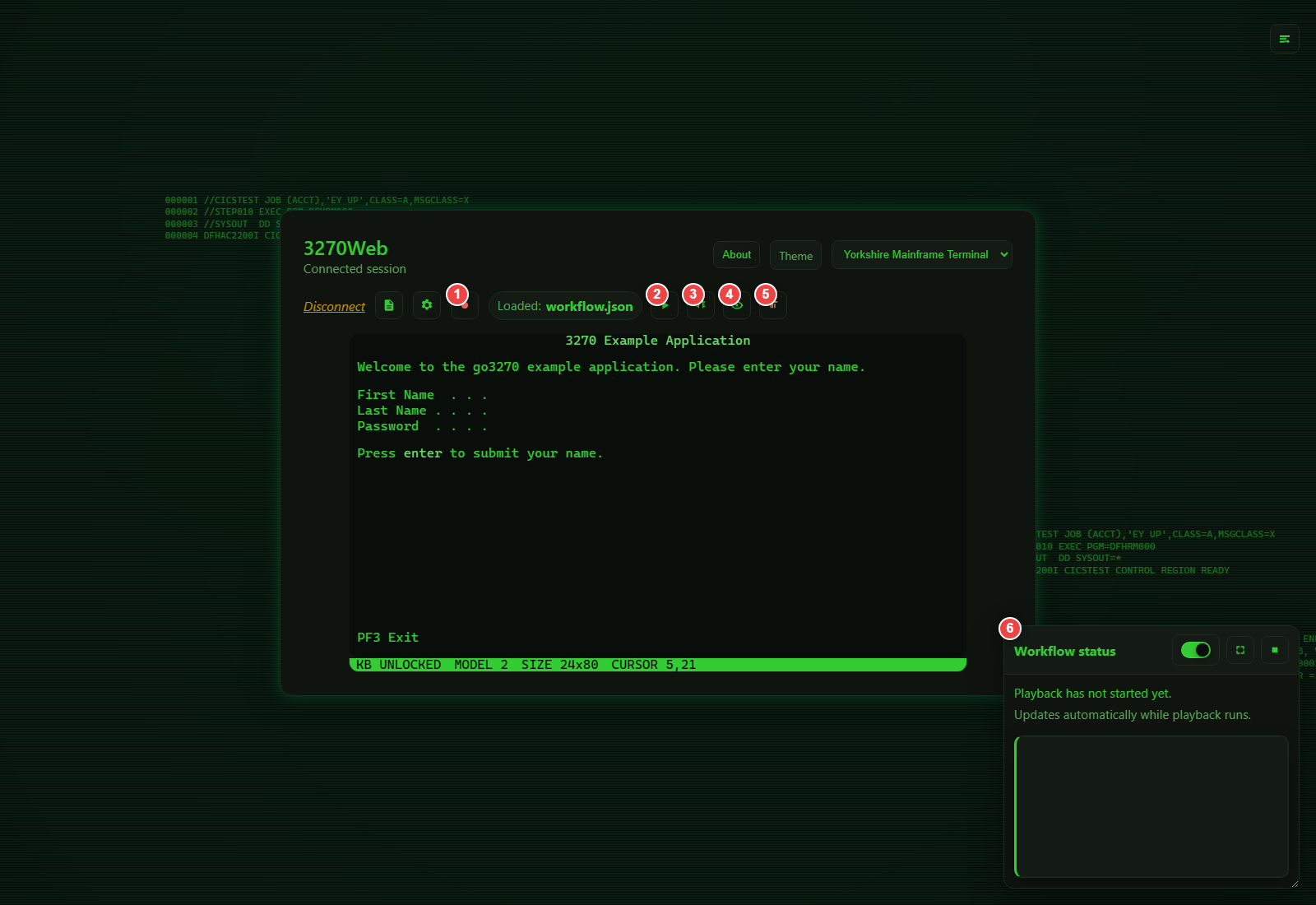
- Start recording
- Play recording
- Debug recording
- View recording JSON
- Remove loaded recording
- Workflow status indicator/widget
Record a Session
- Connect to the target host.
- Click Start recording.
- Perform your terminal actions.
- Click Stop recording.
- Optional: click Download to save the generated JSON file.
Load a Recording
- Click Load recording.
- Choose a
.jsonfile. - Confirm the filename appears as loaded in the toolbar.
- Click View recording to inspect the full JSON.
Play a Recording
- Load a recording.
- Click Play recording.
- Watch playback status in the toolbar and Workflow Status widget.
- Use Pause/Resume in play mode if needed.
- Click Stop playback to end execution.
Debug a Recording (Step-by-step)
- Load a recording.
- Click Debug recording.
- Use Step to execute one action at a time.
- Watch current step number/type in the status indicators.
- Click Stop playback when done.
Debug mode is recommended for new or edited recordings.
Remove a Loaded Recording
Click Remove recording to clear the currently loaded file from the session.
Workflow Status Widget
The Workflow Status panel shows:
- Current step and total steps
- Current action type
- Delay range and applied delay (when present)
- Recent playback events
You can:
- Open it from the status indicator
- Minimize/maximize it
- Enable or disable tracking
Recording JSON Basics
A recording includes a Steps array of actions.
Example:
{
  "Host": "sampleapp:app1",
  "Steps": [
    { "Type": "Connect" },
    {
      "Type": "FillString",
      "Coordinates": { "Row": 5, "Column": 21 },
      "Text": "User"
    },
    { "Type": "PressEnter" },
    { "Type": "Disconnect" }
  ]
}
Common action types:
FillStringPressEnterPressTabPressPF<n>(for examplePressPF3)
Troubleshooting Playback
- Confirm host and port are correct.
- Confirm terminal model matches the one used when recording.
- Confirm screen layout and field coordinates still match host screens.
- Add delays for timing-sensitive screens.
- Use Debug mode to find the first failing step.
Related: Chaos Exploration
Use Chaos mode when you need to discover unknown screen paths or generate new workflow steps automatically.
- Start/stop chaos from the toolbar
- Review granular attempt status in the Workflow Status widget
- Export the generated JSON and load it back as a standard workflow
See Chaos Mode for full details.