AI Chat Mode
AI Chat mode is a side panel that lets you drive a 3270 session through conversation. You type instructions in plain language; the AI reads the current screen, fills fields, presses keys, and runs chaos exploration — all with your approval before each action.
Driving 3270Web from outside the browser
The same tools are available to any MCP client — Claude Desktop, VS Code, Claude Code — through the MCP Server. Everything on this page about what the assistant can do applies there too; only the front end differs.
You choose which AI answers. GitHub Copilot, Claude, OpenAI, Google AI, Ollama (local or cloud) and any OpenAI-compatible endpoint are all supported, and everything on this page works the same way whichever one you pick. See AI Providers to set one up.
Open the Panel
- Connect to a host.
- Click the Open AI chat button in the menu bar (the chat bubble icon), or press Ctrl+K and run Toggle AI chat.
- The side panel slides open on the right.
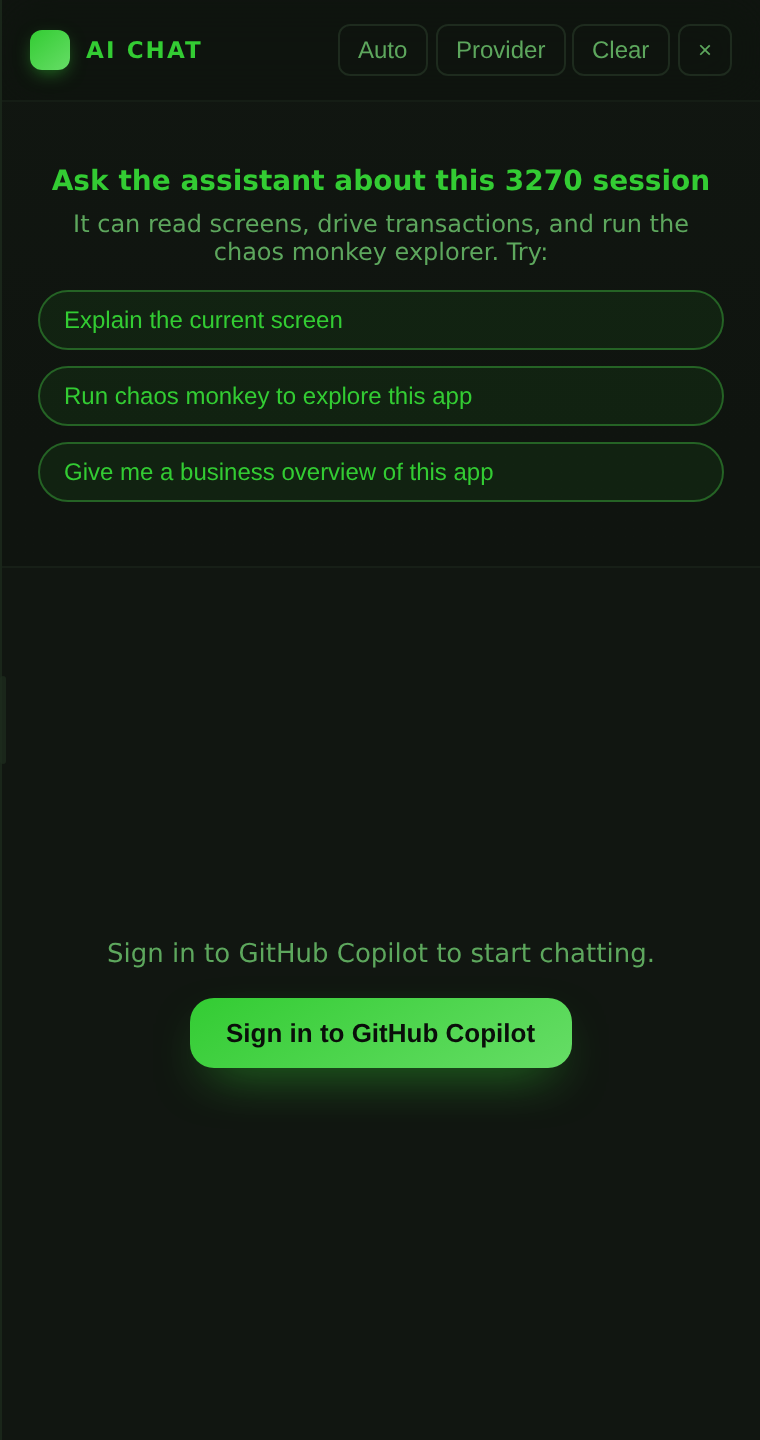
Drag the panel's left edge to resize it, or focus the edge and use Left / Right (hold Shift for larger steps). The width is remembered between sessions.
Connect a Provider
The panel starts on GitHub Copilot. Before the first message you need either a Copilot sign-in or an API key for a different provider — the panel prompts for whichever the selected provider needs.
- Click Provider in the panel header (or press Ctrl+K and run AI provider settings).
- Pick a provider, fill in whatever it asks for, and click Save.
- The panel header shows the provider you are talking to, and the model dropdown reloads with that provider's models.
To disconnect, click Sign out in the panel header. For Copilot that clears the OAuth token; for every other provider it forgets the stored API key.
Full per-provider setup — including GitHub Enterprise, local Ollama and corporate gateways — is in AI Providers.
Send a Message
Type any instruction in the input box and press Send (or Enter).
Examples:
- "Read the current screen and tell me what options are available."
- "Navigate to the account inquiry menu and look up account 12345."
- "Run a chaos exploration and give me a summary when it finishes."
The AI reads the current screen before acting, then proposes one tool call at a time.
Explain This Screen
Sooner or later a screen arrives that nobody recognises — an unfamiliar transaction, a panel four steps into a flow somebody else recorded, an error code with no legend on it. Asking about that screen should not require typing a sentence describing it.
Explain this screen does it in one click, from three places:
- Terminal → Explain this screen in the menu bar.
- The bulb button beside the chat input, whenever the panel is open.
- Ctrl+K, then Explain this screen.
The panel opens if it was closed, and the question is asked for you.
The screen is captured at the moment you ask and travels with the question. This matters more than it sounds. The screen worth explaining is rarely the first one, and the host is free to redraw at any time — an inactivity timeout, a broadcast message, the next panel of a conversational transaction. An assistant told only "explain this screen" reads the display a round later and explains whatever is there by then, which is worse than no answer: it is a confident answer about a screen you were not asking about. Pinning the screen to the question removes that gap.
Because the screen is part of the message rather than a passing note, follow-up questions still work — "what is the field on line 12 for?" is answered against the screen you asked about, not the one now on the display.
Two details worth knowing:
- The transcript shows your question, not the eighty columns of screen attached to it. The screen is there for the model; the panel stays readable.
- Hidden fields are masked before the screen leaves 3270Web, so a password typed into a sign-on panel is never sent to the AI provider and never written to the stored conversation. This is the same redaction the REST API applies.
As with anything read from a host, the captured screen reaches the model
wrapped in <untrusted-host-data> tags: a screen is text somebody else
controls, and text that reads like an instruction is still data. See
What the model sees.
Tool Approval
Each AI action requires explicit approval:
- The panel shows a Run button before executing any tool call.
- Click Run to approve it, or Skip to decline it.
- This prevents unintended writes or key presses.
Every tool call is a card carrying its name, arguments, result, and a status badge. The badge and the card's left edge are colour-coded so you can scan a long exchange quickly:
| Status | Meaning |
|---|---|
| Pending approval (amber) | Waiting for you to click Run |
| Running (blue) | Executing against the session |
| Done (green) | Completed successfully |
| Failed (red) | The call returned an error |
| Skipped (grey) | You declined it |
To let the AI proceed without pausing, enable Auto Mode (toggle in the panel header). In Auto Mode the panel runs tool calls automatically without waiting for you to click Run each time.
Choose a Model
Above the input box is a model selector listing the models your selected provider offers. 3270Web asks the provider for its live catalogue and falls back to a built-in list when it cannot (no key entered yet, or an endpoint that has no model list). Switch at any time and the next message uses the new model.
Each provider remembers its own model, so moving between providers does not reset your choice — and a model name the dropdown does not list can be typed into the Model box in the provider dialog.
Pick a heavier model for screen-reasoning-heavy sessions and a lighter one for quick reads or repetitive automation.
Available Actions
The AI can perform the following actions on your 3270 session:
| Action | Description |
|---|---|
| Read screen | Returns the current screen as ASCII text with a full field map (row, col, value, protection flags) |
| Send key | Sends any AID key: Enter, PF1–PF24, PA1–PA3, Tab, BackTab, Clear, Reset, Home, arrow keys, and more |
| Write field | Writes text into an unprotected field at a given row and column |
| Submit screen | Writes modified fields then presses Enter |
Beyond the Screen
The panel drives more of this build than the keyboard does. Each of the following was on the REST API before it was a tool, which meant an assistant asked whether 3270Web could do it had no way to find out that it could — and answered from what it could see, which was a keyboard and an exploration engine.
| Ask for | Tool used | What it does |
|---|---|---|
| Run a saved task | list_tasks / run_task |
Lists the Guided Business Tasks saved here — each with the values it needs and the answer it returns — and runs one by name. Preferred over driving the screens by hand: a task verifies it is on the screen it expects before typing |
| Check a screen against a known-good one | snapshot_take / snapshot_diff |
Freezes the screen under a name, then reports which rows moved — against another snapshot or against the screen as it stands. The answer is the rows that differ, not a pass or a fail |
| Manage what is held | snapshot_list / snapshot_delete |
Names and sizes of the snapshots this session holds, and how to make room |
| Describe the connection | get_connection_details |
What was negotiated: TN3270E, the bound LU, the terminal type, TLS, byte counts. None of it is on the screen, and all of it matters when a session renders but misbehaves |
| Change what the terminal shows | get_display_toggles / set_display_toggle |
Reads and writes the terminal's own display settings — monocase, crosshair, cursor blink, the underscore under input fields |
| Collect printed output | printer_status / printer_start / printer_stop / printer_read_job |
Reports the 3287 printer session bound beside this one and every job it has collected, binds or ends one, and reads what the host printed. Batch output goes to a printer LU, never to the screen |
Snapshots live in memory for the life of the session and are never written to disk. A long print job is cut short before it reaches the conversation; the reply says so, and the whole file stays downloadable from the printer panel.
Chaos Integration
The AI can run and monitor chaos exploration directly from the chat panel. This gives you the same capability as the Automation menu, but driven by conversation.
| Chat command | Tool used | What it does |
|---|---|---|
| Start exploration | chaos_start |
Begins automated exploration with configurable step/time limits |
| Stop / Resume | chaos_stop / chaos_resume |
Stops a running run or resumes a loaded one |
| Check progress | chaos_status |
Returns current steps, transitions, unique screens, and coverage stats including the exploration frontier |
| Discovery report | chaos_report |
Markdown report with a Mermaid flow map, per-screen working and untried keys, field discovery, and analyst hints |
| Next experiments | chaos_insights |
Ranked guidance after a run stops: productive vs dead vs untried keys per screen, unproductive fields, and suggested experiments |
| Save hints | chaos_save_screen_hint / chaos_update_hints |
Adds known transaction codes, data values, or key assignments to guide exploration |
| Export workflow | chaos_export_workflow |
Downloads learned paths as 3270Connect-compatible JSON |
The default system prompt uses a five-phase workflow: read the screen → review existing hints → ask you to choose run mode → start exploration → export results. You can override this by writing your own instructions.
The Automation menu and the AI panel share the same run state — you can freely mix both. See Chaos Mode for full details on the menu controls, settings, and the discovery report format, and see Running Chaos via AI Chat for a side-by-side comparison.
Business Understanding
Chaos exploration discovers what works — screens, key presses, and input values. The business-understanding tools let the AI add what it means: after a run (or whenever you ask it to "understand the app" or "map the business functions"), the AI reviews each discovered screen, infers its business purpose and the meaning of each input field, and records the result in the chaos mind map.
| Chat command | Tool used | What it does |
|---|---|---|
| Review discovered screens | chaos_list_screens |
Lists every screen with previews, fields, learned values, key destinations, and existing annotations |
| Annotate a screen | chaos_annotate_screen |
Records a business purpose (e.g. "Customer account inquiry") and per-field semantics (e.g. R5C20L8 → account_number) |
| Catalog a business function | business_save_function |
Saves a named multi-screen operation (steps + parameters), e.g. "Account inquiry" |
| List the catalog | business_list_functions |
Returns all cataloged business functions with their parameters |
| Generate a workflow | business_generate_workflow |
Turns a cataloged function plus parameter values into a downloadable, business-focused workflow JSON |
Annotations and the function catalog are stored inside the chaos run's mind map, so they persist with saved runs and travel through mind-map export/import. Knowledge is per run: load the annotated run (or import its mind map) in a new session to reuse it.
Performing business functions by prompt
Once functions are cataloged you can drive them in plain language:
- "Look up account 1234" — the AI matches the request against the catalog and drives the live session step by step, verifying each screen before writing.
- "Create a workflow that looks up an account" — the AI collects any missing required parameters (via clickable questions), calls
business_generate_workflow, and offers the resulting JSON for download. The file loads and replays through the standard workflow controls.
Generated business workflows carry Name, Description, BusinessFunction, and Parameters metadata so they are self-describing; see Workflow for the format.
Known Limitations
- Chat requests and tool endpoints are not rate-limited server-side; very long automated loops are bounded only by the per-message tool budget and your provider's own quotas.
- Tool calling is required. Every provider listed in AI Providers supports it, but a small local model served through an OpenAI-compatible endpoint may not, or may do it badly — if the assistant answers in prose instead of reading the screen, that is usually the cause.
- Reasoning/thinking output is not displayed. Models that think before answering still do so, but only the final answer reaches the panel.
- If the model stream fails mid-response, that exchange is not added to the history — re-send the prompt.
- Conversation history is persisted in browser localStorage and capped at the most recent 200 messages.
- Business annotations key on screen hashes, which are specific to the run's mind map. Re-running discovery against a changed application may produce new hashes; re-annotate or re-import the mind map in that case.
Clear the Conversation
Click Clear in the panel header to remove all messages from the current chat session. A confirmation dialog appears before the history is deleted.
Keyboard Shortcut
Press Ctrl+K (Cmd+K on macOS) and run Toggle AI chat to show or hide the panel without reaching for the menu bar; AI provider settings in the same palette opens the provider dialog, and Explain this screen asks about the panel in front of you without opening the chat first. All other 3270 key bindings remain active while the panel is open; see Keyboard and Controls.